Pilot Training Flight Simulator Liveries: Complete Guide & List
Discover everything about Pilot Training Flight Simulator liveries. Explore our complete guide to customizing your aircraft and choosing the best airline designs.
Published:
Table of Contents
Flying in the vast skies of Roblox is an exhilarating experience, but personalizing your aircraft is what truly sets a pro pilot apart. If you are looking to master the aesthetic side of your aviation career, understanding how pilot training flight simulator liveries work is your first step toward flying in style.
Whether you are a casual flyer or an aviation enthusiast, these custom skins allow you to represent world-renowned airlines or display teams while navigating the virtual skies. In this guide, we dive deep into the mechanics of pilot training flight simulator liveries, how they have evolved over the years, and how you can select the perfect look for your next flight.
Understanding the Evolution of PTFS Liveries
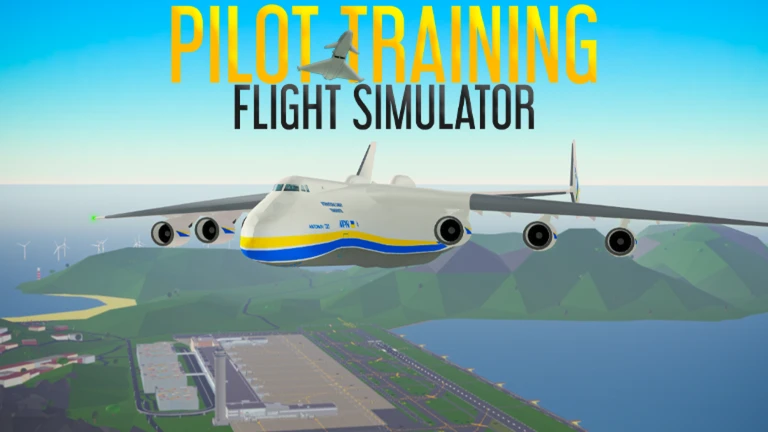
The visual identity of your aircraft in the game has a surprisingly rich history. When you browse through the available pilot training flight simulator liveries, you might notice that some carry recognizable brand colors while others have a more generic feel.
According to community reports, the game initially launched with fully branded airline liveries. However, following a platform-wide update on Roblox back in 2019, many of these original branding elements were removed to ensure compliance with intellectual property guidelines. This transition led to a period where these designs remained nameless until 2023, when the development team introduced slightly modified naming conventions to help players identify their favorite carriers.
Why Customizing Your Livery Matters
Customization is not just about looks; it is about immersion. When you select a specific airline livery, you are choosing to roleplay as a pilot for that specific carrier. This adds a layer of depth to your flight operations, especially when participating in ATC-controlled sessions or formation flights.
How to Access and Select Your Livery
Navigating the menu to change your aircraft's appearance is straightforward. Once you have spawned your chosen plane, look for the customization or aircraft menu. You will find a library of options that allow you to switch between various global airlines.
Step-by-Step Selection Process
Step
Action
Description
1
Spawn Aircraft
Select your desired plane from the main hangar.
2
Open Menu
Navigate to the 'Aircraft' or 'Liveries' tab.
3
Browse List
Scroll through the 42 available options.
4
Apply Selection
Click the livery to instantly update your plane's texture.
Note: Always ensure your plane is stationary on the tarmac before applying a new livery to avoid potential rendering glitches.
Pro Pilot Tip
If you are performing formation flights with friends, try coordinating your liveries to match the same airline or display team for a professional, cinematic look.
Popular Livery Categories in PTFS
With 42 unique designs available, the choices can be overwhelming. Players often categorize these based on their operational roles, such as commercial passenger service, cargo logistics, or specialized display teams.
Top Rated Liveries by Player Usage
Category
Representative Liveries
Ideal Flight Type
Commercial
Emirates, British Airways, Lufthansa
Long-haul passenger routes
Cargo
FedEx, UPS, Korean Air Cargo
Heavy-lift delivery missions
Display Teams
Blue Angels, Red Arrows
Aerobatic maneuvers
Regional
AirBaltic, Wizz Air, Jet2
Short-hop island hopping
According to player experience shared on the Pilot Training Flight Simulator Wiki, the most visited articles often center around the iconic wide-body aircraft like the Boeing 747 and Airbus A380. These planes offer the most surface area for displaying detailed livery designs, making them favorites for flight photography enthusiasts.
Technical Considerations: Performance and Rendering
While pilot training flight simulator liveries are visually stunning, they do impact how your game renders. Each livery is a texture file applied to the 3D model of your plane. If you find your frame rate dropping during busy airport sessions, consider the following:
Graphics Settings: Lowering your 'Graphics Quality' in the Roblox menu can help the game render complex liveries more efficiently.
Asset Loading: If a livery fails to load, simply re-selecting it in the menu usually forces a refresh of the texture cache.
Connectivity: High latency can sometimes delay the appearance of custom textures, making your plane appear as a default "blank" model temporarily.
Common Mistakes to Avoid
New players often make a few common errors when managing their aircraft appearance. Avoiding these will save you time and improve your overall experience:
Ignoring the "Blank Livery": Many players forget that a blank or staff-specific livery exists. This is perfect for those who want to create their own custom branding or participate in group-specific events.
Overlooking Display Teams: Many users stick to commercial airlines but miss out on the high-visibility skins of the Red Arrows or Blue Angels, which are specifically designed for high-speed formation flying.
Misinterpreting Copyright: A common misconception is that the livery removal was strictly due to legal threats. In reality, it was a proactive move following platform updates to maintain a safe and compliant environment for all users.
Frequently Asked Questions (FAQ)
Are all pilot training flight simulator liveries free?
Yes, all 42 liveries currently in the game are accessible to players without the need for additional gamepasses. You can switch between them freely via the aircraft menu.
Can I upload my own custom livery to the game?
As of the current game version, players cannot upload their own external images as liveries. You must select from the official list provided by the Pilot Training Club.
Why do some planes show up as white or "blank"?
This usually happens due to a loading error or because you have selected the "Blank Livery" option. If it is a loading error, try re-selecting the livery in the aircraft customization menu.
How many liveries are available in total?
There are currently 42 distinct liveries available, featuring a mix of major international airlines, cargo companies, and famous aerobatic display teams.