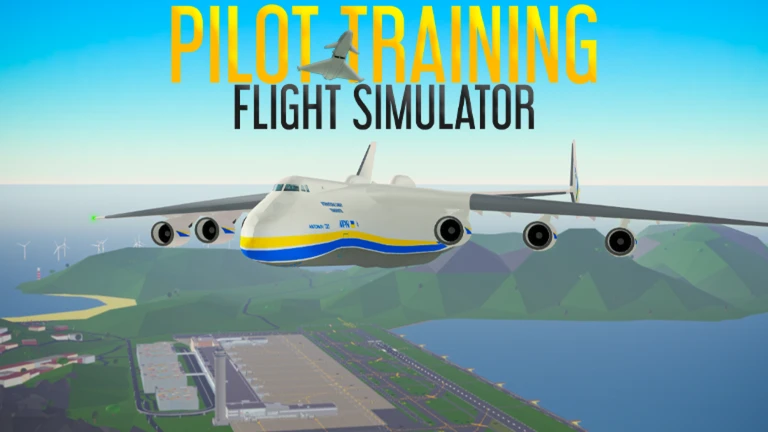
Mastering Pilot Training Flight Simulator Flaps: A Full Guide
Learn how to use Pilot Training Flight Simulator flaps effectively. Discover expert tips for takeoff, landing, and flight control in this Roblox aviation guide.
Published:
Table of Contents
Flying in Pilot Training Flight Simulator on Roblox is an immersive experience, but mastering your aircraft's control surfaces—specifically the flaps—is what separates a casual player from a skilled aviator. Whether you are struggling to maintain lift during a heavy takeoff or finding it difficult to slow down for a smooth landing, understanding how to use pilot training flight simulator flaps is essential for flight stability.
In this guide, we will break down exactly how these aerodynamic components function within the game’s flight kit interface. Mastering your pilot training flight simulator flaps settings will significantly improve your ability to handle various aircraft, from agile private jets to massive commercial airliners.
Understanding the Flight Kit Interface
Before you start toggling your flaps, you must be comfortable with the Flight Kit UI. When you enter the pilot seat of any aircraft in the game, the interface provides critical telemetry including speed, altitude, and throttle percentage.
The flaps indicator is located within this menu, and it serves as your primary reference for how much drag and lift you are currently generating. If your aircraft does not have a flaps indicator, it likely features fixed wings or a specialized design that does not require manual flap adjustment.
Core Flight Kit Components
Component
Function
Throttle
Controls engine power (0-100%)
Speed
Measured in knots (nautical miles per hour)
Flaps
Adjusts wing geometry for lift or drag
Gear Down
Toggles landing gear deployment
How Flaps Affect Your Aircraft's Performance
Flaps are secondary flight control surfaces that extend from the trailing edge of an aircraft's wings. In the game, they are primarily used to modify the wing's lift-to-drag ratio. According to community reports from experienced players, using flaps incorrectly is a common reason for stalling or failing to reach rotation speed during takeoff.
When you deploy flaps, you increase the surface area of the wing. This allows the plane to generate more lift at lower speeds, which is crucial for safety during takeoffs and landings. However, this also increases drag, which will naturally slow the aircraft down if you do not compensate with throttle.
Deployment Stages and Their Uses
Flap Setting
Primary Use Case
Effect on Aircraft
Flaps 0
Cruise / High-speed flight
Minimum drag, clean wing profile
Flaps 1
Initial Takeoff
Moderate lift, minimal drag
Flaps 2
Landing Approach
Increased lift, moderate drag
Flaps 3+
Final Landing / Heavy braking
Maximum lift, high drag, low speed
Best Practices for Takeoff and Landing
Using pilot training flight simulator flaps during takeoff is a balance of timing and power. As noted by aviation enthusiasts in the community, using "Flaps 1" for an ordinary takeoff allows the plane to rotate at a lower speed, getting you off the runway faster. If you are flying a heavy aircraft like a Boeing 747, utilizing the correct flap setting can help you raise your speed more effectively.
For landing, the strategy shifts. You want to maximize drag to shed speed without stalling. Experienced players suggest transitioning through flap stages as you approach the airport.
Recommended Landing Sequence
Initial Approach: Reduce throttle and deploy Flaps 1 to begin speed reduction.
Intermediate Phase: As you align with the runway, extend to Flaps 2 to increase lift at lower speeds.
Final Flare: Deploy Flaps 3 (if available) to maximize drag and ensure a gentle touchdown speed.
Avoid Common Stall Errors
Always keep an eye on your speed indicator. Deploying too many flaps at a high speed can cause structural stress or unexpected handling, while deploying them at too low a speed can trigger a stall.
Advanced Control and Co-pilot Interaction
Did you know that in Pilot Training Flight Simulator, your co-pilot can assist you? If you have granted "Limited Control" to a co-pilot, they are able to adjust the flaps, flares, and tail/nose pitch for you. This is a vital feature for formation flights or complex landing procedures where the pilot needs to focus on navigation while the co-pilot manages the configuration.
Control Permissions Overview
User Role
Capabilities
Pilot
Full control over all systems
Co-Pilot (Limited)
Flaps, Flares, Tail/Nose adjustments
Passenger
No control over flight surfaces
If you are struggling with a specific aircraft, always check the "Controls" button in the flight kit interface to see if there are unique limitations or requirements for that specific model. You can find more detailed aircraft specifications on the Official Pilot Training Flight Simulator Wiki.
Troubleshooting Your Flight Path
Sometimes, even with the right flap settings, you might struggle to control the plane. This often comes down to the relationship between your throttle and your flap deployment. If you find your plane "sinking" too fast, you might have too much drag and not enough engine power.
Remember, pilot training flight simulator flaps are not a "set and forget" feature. You should constantly monitor your speed and altitude. If you are flying a heavy jet, you may need to keep the throttle higher than you would in a light Cessna to maintain a level glide path when flaps are extended.
Common Player Mistakes
Over-flapping: Extending to maximum flaps too early, causing the plane to lose too much energy.
Ignoring Speed: Failing to monitor the knot counter while adjusting wing configuration.
Forgetting Gear: Deploying flaps but forgetting to lower the landing gear, leading to a belly landing.
Frequently Asked Questions (FAQ)
Q: Do all planes in the game use flaps?
A: No. Some smaller or older aircraft models in Pilot Training Flight Simulator have fixed-wing configurations and will not display a flap indicator in the flight kit.
Q: Why does my plane stall when I use flaps?
A: Stalling usually occurs because your speed is too low for the current flap setting. If you deploy too much flap, the increased drag slows the plane down significantly; you must increase your throttle to compensate.
Q: What is the best flap setting for landing?
A: Generally, Flaps 2 or 3 are used for landing, depending on the aircraft size. Always aim for the landing speed indicated in your UI to ensure a safe descent.
Q: Can I use flaps to fly faster?
A: No, it is the opposite. Flaps are designed to increase lift and drag, which effectively slows the aircraft down. For maximum cruise speed, you should always keep your flaps at 0.